
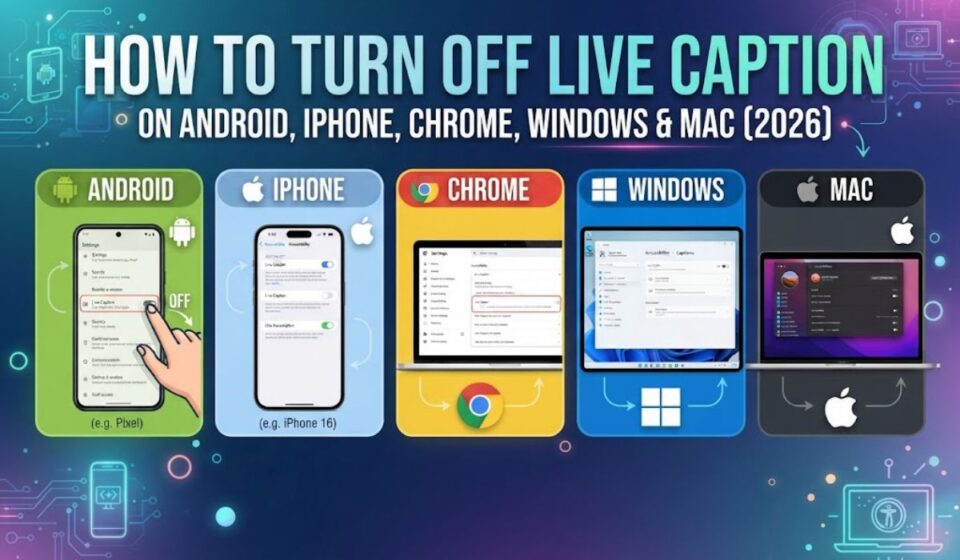

Those floating subtitles keep popping up on your screen, and you just want them gone. Live Caption turns spoken audio into text as it plays. It helps many people, but it can also cover your screen or turn on by accident. The good news is that turning off Live Caption takes less than a minute on most devices.
This guide shows you the exact steps in simple words. You will learn how to switch it off on Android, iPhone, Chrome, Windows, and Mac. You will also see quick fixes for captions that keep coming back. Menu names can change after updates, so use the search bar in Settings if something looks different.
Quick Answer: How Do You Turn Off Live Caption?
Answer block: To turn off Live Caption, open your device’s Accessibility settings and switch off the Live Caption toggle. On Android, you can also tap the caption icon under the volume slider. In Chrome, go to Settings, then Accessibility, and toggle Live Caption off. On Windows, press Win + Ctrl + L.
Live Caption is an accessibility tool that turns spoken audio into on-screen text. It is helpful for many people. It can also get in the way if you did not mean to turn it on.
At-a-Glance Summary
| Device or App | Fastest Way to Turn Off |
| Android (Pixel) | Volume button, then tap the Live Caption icon |
| Samsung Galaxy | Settings > Accessibility > Hearing enhancements |
| Google Chrome (desktop) | Settings > Accessibility > toggle Live Caption off |
| Chrome media controls | Click the media icon, then toggle off Live Caption |
| Windows 11 | Press Win + Ctrl + L |
| Mac | System Settings > Accessibility > Live Captions |
| iPhone / iPad | Settings > Accessibility > Live Captions |
| YouTube | Click the CC button on the video |
What’s in This Guide
- What Live Caption does
- Turn it off on Android
- Turn it off on Samsung
- Turn it off in Chrome
- Turn it off on Windows and Mac
- Turn it off on iPhone and iPad
- YouTube captions are different
- Troubleshooting
- Do’s and don’ts, FAQs, and final thoughts
What Does Live Caption Actually Do?
Live Caption creates subtitles in real time for audio playing on your device. That includes videos, podcasts, and voice messages. The text appears in a small box on your screen.
Most devices process the speech on the device itself. Chrome’s version works with media playing in the browser. Some tools only work on select models, so your device may not have it at all.
Why People Turn It Off
- It blocks the screen. The caption box can cover buttons or video.
- It turned on by accident. A volume tap can toggle it.
- It drains attention or battery. Real-time processing uses resources.
- It feels distracting. Not everyone wants subtitles on every video.
- Privacy preference. Some users simply prefer fewer active features.
How to Turn Off Live Caption on Android
This works on Pixel phones and other supported Android devices. Live Caption appears on phones running Android 10 and newer.
Method 1: Use the Volume Shortcut
This is the fastest option. Sources describe a caption button that toggles the feature instantly.
- Press a volume button on your phone.
- Look under the volume slider for the Live Caption icon.
- Tap the icon to switch it off.
Method 2: Use Settings
- Open Settings.
- Tap Accessibility (or Sound on some phones).
- Select Live Caption.
- Toggle Use Live Caption off.
Android Methods Compared
| Method | Speed | Best For |
| Volume shortcut | Very fast | Quick, temporary toggling |
| Settings menu | Slower | Making sure it stays off |
How to Turn Off Live Caption on Samsung
Samsung phones place the option in a different spot. One source points to the Hearing enhancements section for turning captions off.
- Open Settings.
- Tap Accessibility.
- Choose Hearing enhancements.
- Select Live Caption and toggle it off.
If you cannot find it, search “caption” inside Settings. Samsung menus change between One UI versions.
How to Turn Off Live Caption in Google Chrome
Chrome has its own Live Caption for audio and video in the browser. You can turn it off in two ways. One is temporary and one is permanent.
Method 1: Quick Toggle From Media Controls
When media is playing, a media control icon shows near the top right. Click it, then toggle Live Caption off at the bottom. This is the easiest fix during a video.
Method 2: Turn It Off in Settings
- Click the three dots at the top right.
- Choose Settings.
- Open the Accessibility tab on the left.
- Toggle Live Caption off.
You can also paste chrome://settings/accessibility into the address bar to jump straight there.
Chrome on Android
Open Chrome, tap the menu, then go to Settings and Accessibility. Tap Captions, which opens your Android caption settings. Then turn off the caption switch.
Chrome Options Compared
| Option | Scope | Best For |
| Click X on the caption box | Closes it for now | Quick hide |
| Media control toggle | Current session | Mid-video fix |
| Settings toggle | Permanent | Stopping it for good |
How to Turn Off Live Caption on Windows and Mac
Windows 11
Windows 11 has built-in live captions on version 22H2 and later. Press Win + Ctrl + L to switch it on or off. This shortcut works even if your computer is muted.
You can also use the quick settings Accessibility panel or open Settings > Accessibility > Captions and toggle Live captions off.
Mac
Live Captions on Mac is a beta feature, and it works only on Apple silicon Macs in supported regions and languages.
- Click the Apple menu.
- Open System Settings.
- Click Accessibility.
- Choose Live Captions and turn it off.
If the caption window stays on screen, click the Live Captions icon in the menu bar. Make sure Keep Onscreen is not selected.
How to Turn Off Live Captions on iPhone and iPad
Apple’s version is called Live Captions and has been labeled beta on some devices.
- Open Settings.
- Tap Accessibility.
- Under Hearing, tap Live Captions.
- Switch the toggle off.
You can also manage captions only for certain apps, such as FaceTime, using the in-app options on the same screen.
YouTube Captions Are Different
Many people mix up Live Caption with YouTube subtitles. They are separate features. Turning off one does not turn off the other.
To hide captions on a single video, click the CC button on the player. To stop them across all videos, open YouTube’s playback settings and uncheck Always show captions.
| Feature | Controlled By | How to Turn Off |
| Live Caption (Android) | Your phone | Volume icon or Settings |
| Live Caption (Chrome) | Your browser | Chrome Accessibility settings |
| Live captions (Windows/Mac/iOS) | Your operating system | System accessibility settings |
| YouTube captions | The YouTube app or site | CC button or playback settings |
Troubleshooting: When Captions Keep Coming Back
If captions still appear, try these fixes in order:
- Check every layer. Device, browser, and app captions are separate.
- Restart the app or browser. Settings sometimes need a refresh.
- Update your software. Menus move after major updates.
- Use Settings search. Type “caption” or “subtitle.”
- Check another account or profile. Chrome profiles can have different settings.
| Problem | Likely Cause | Fix |
| Captions reappear after restart | Toggle was only closed, not disabled | Turn off in Settings |
| Cannot find the option | Feature unsupported on your device | Check device support |
| Captions only on YouTube | App captions, not Live Caption | Use CC or playback settings |
| Box stays on Mac | Keep Onscreen enabled | Uncheck it in the menu bar |
Do’s and Don’ts
| ✅ Do | ❌ Don’t |
| Use the volume icon for a quick toggle on Android | Assume it is gone after closing the box |
| Check Chrome and system settings separately | Ignore that browser and OS captions differ |
| Keep captions on if you rely on them | Disable accessibility tools others may need |
| Update your device for current menus | Follow old screenshots blindly |
| Search “caption” in Settings | Hunt through every menu manually |
Common Mistakes
- Closing the caption box instead of switching it off. It may return next time.
- Turning off YouTube captions but not Live Caption. They are different tools.
- Forgetting shared devices. Someone else may need captions on.
Frequently Asked Questions
How do I turn off Live Caption on Android?
Press a volume button and tap the Live Caption icon. Or go to Settings > Accessibility > Live Caption and toggle it off.
How do I turn off Live Caption in Chrome?
Open Chrome Settings, select Accessibility, and toggle Live Caption off. You can also use the media control menu.
How do I turn off Live Caption on Samsung?
Go to Settings > Accessibility > Hearing enhancements and switch Live Caption off.
What is the shortcut to turn off live captions on Windows 11?
Press Win + Ctrl + L to toggle live captions on or off.
Why do captions keep appearing on my screen?
Another layer may still be on, such as the browser, an app, or YouTube. Check each one.
Does turning off Live Caption delete my data?
No. The feature only shows text on screen. Chrome notes that captions are not saved on your device.
Is Live Caption the same as YouTube captions?
No. YouTube captions are controlled inside YouTube, while Live Caption is a device or browser feature.
Final Thoughts
Turning off Live Caption is simple once you know which layer is active. Start with the quick toggle, then use the Accessibility settings if captions come back. Check your browser, operating system, and apps separately, since each one has its own switch.
Live Caption is still a valuable tool for many people, including those who are deaf or hard of hearing. If you share a device, think about whether someone else relies on it. You can always turn it back on in the same place within seconds.