
Live Caption is a handy feature, but it can get annoying fast. A gray box pops up over your video, your game, or your voice message, and you just want it gone. The good news is that you can turn it off in a few taps.
The steps change depending on your device. Android, iPhone, Chrome, and Windows all have their own settings. This guide shows you the quickest way to switch it off on each one, so you can get back to a clean screen.
Quick Answer: How to Turn Off Live Caption
To turn off Live Caption, open your device’s Accessibility or Sound settings, find the Live Caption (or Live Captions) option, and switch the toggle off. On Android, you can also press a volume button and tap the caption icon under the volume slider. On Windows 11, press Win + Ctrl + L.
At-a-Glance: Where to Find Live Caption
| Device / Platform | Fastest Way to Turn It Off | Menu Path |
| Google Pixel | Volume button → tap caption icon | Settings → Sound & vibration → Live Caption |
| Samsung Galaxy | Volume panel → three dots → Live Caption | Settings → Accessibility → Hearing enhancements → Live Caption |
| iPhone / iPad | None (menu only) | Settings → Accessibility → Live Captions |
| Google Chrome | Media icon → Live Caption toggle | Settings → Accessibility → Live Caption |
| Windows 11 | Win + Ctrl + L | Settings → Accessibility → Captions |
| Mac | None (menu only) | System Settings → Accessibility → Live Captions |
What Is Live Caption, and Why Does It Keep Appearing?
Live Caption is an accessibility feature that uses on-device speech recognition to create real-time subtitles for any audio playing on your device. It works on videos, podcasts, voice messages, and even your own recordings.
It was built for people who are deaf or hard of hearing. Plenty of other people use it in noisy places or when they can’t turn the sound up.
Here’s why it may pop up when you don’t want it:
- You tapped the caption shortcut by accident.
- A software update switched it on.
- Someone else used your device or browser.
- Your Accessibility Shortcut is set to Live Caption.
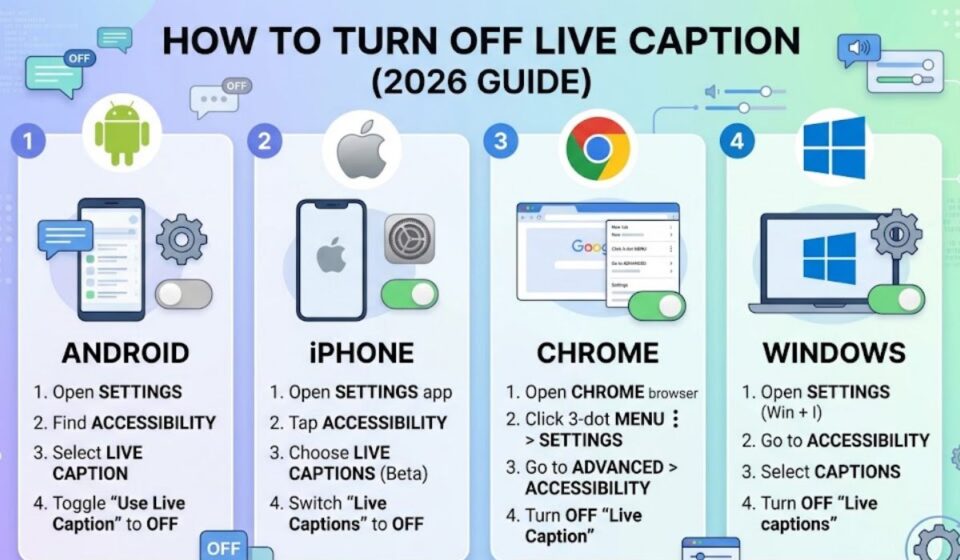
How to Turn Off Live Caption on Android
Android has the most options, so start here if you’re on a phone.
Method 1: Use the Volume Panel (Fastest)
- Press either volume button.
- Look under the volume slider for the Live Caption icon (a small box with lines).
- Tap it once. The icon dims, and the captions disappear.
On Samsung phones, tap the three dots in the volume panel first, then toggle Live Caption.
Method 2: Use Settings
On a Google Pixel:
- Open Settings.
- Tap Sound & vibration.
- Tap Live Caption.
- Switch Use Live Caption off.
On a Samsung Galaxy:
- Open Settings.
- Tap Accessibility.
- Tap Hearing enhancements.
- Tap Live Caption and switch it off.
Method 3: Dismiss the Caption Box Only
If you only want to hide the box for now, tap the X in the corner of the caption bubble. This closes it for the current session without changing your settings.
How to Turn Off Live Captions on iPhone and iPad
Apple calls it Live Captions (plural), and it sits inside Accessibility.
- Open Settings.
- Tap Accessibility.
- Scroll to Live Captions.
- Toggle it off.
If you don’t see it, your device may not support the feature. It requires a compatible iPhone, iPad, or Mac running a recent OS version.
Real-life example: A reader told me his iPhone kept captioning his FaceTime calls. The fix was a second toggle inside the Live Captions menu, Live Captions in FaceTime. Switching the main setting off covers everything, but check this one if captions only show up on calls.
How to Turn Off Live Caption in Google Chrome
Chrome has its own version, and it’s separate from your phone or computer’s system setting. That’s why captions can appear in Chrome even after you’ve turned them off elsewhere.
Option A: From the Media Controls
- Start playing any audio or video in Chrome.
- Click the media icon in the top-right toolbar.
- Toggle Live Caption off.
Option B: From Chrome Settings
- Click the three dots (top right) → Settings.
- Click Accessibility in the left menu.
- Switch Live Caption off.
You can also paste chrome://settings/accessibility into the address bar to jump straight there.
How to Turn Off Live Captions on Windows 11
Windows 11 offers three quick ways to do it.
| Method | Steps | Speed |
| Keyboard shortcut | Press Win + Ctrl + L | Instant |
| Quick Settings | Click the network/volume icons → Accessibility → Live captions | ~5 seconds |
| Settings app | Settings → Accessibility → Captions → Live captions | ~10 seconds |
The shortcut is a toggle. Press it once to turn captions on and again to turn them off. If you pressed it by accident while typing, that’s likely why a caption bar suddenly appeared at the top of your screen.
How to Turn Off Live Captions on Mac
- Click the Apple menu → System Settings.
- Choose Accessibility.
- Click Live Captions.
- Toggle Live Captions off.
If you use it on a MacBook, the same setting applies to FaceTime and other apps.
Live Caption vs. Closed Captions vs. Subtitles
People mix these up constantly, and that’s the most common reason someone turns off Live Caption but still sees text on the screen.
| Feature | Who Creates It | Where You Turn It Off |
| Live Caption | Your device (on-device speech recognition) | System or browser Accessibility settings |
| Closed Captions (CC) | The video creator or platform | The CC button in the video player |
| Subtitles | Translators or the creator | The player’s subtitle or language menu |
| Auto-generated captions | The platform (such as YouTube) | The CC button in the player |
If text still appears after you’ve disabled Live Caption, it’s almost always a built-in caption from the app. Turn those off inside the player itself.
How to Turn Off Captions in Meet, Zoom, and YouTube
Video apps run their own caption systems, which Live Caption settings don’t control.
| App | How to Turn Off |
| Google Meet | Click the CC button in the bottom bar |
| Zoom | Click CC or Show Captions → choose Hide Subtitle |
| YouTube | Click the CC icon in the video player |
| Netflix | Click the speech-bubble icon → Subtitles: Off |
Troubleshooting: Live Caption Won’t Stay Off
Sometimes you switch it off and it returns. Work through this table from top to bottom.
| Problem | Likely Cause | Fix |
| Captions return after a restart | Accessibility Shortcut is active | Settings → Accessibility → remove Live Caption from shortcuts |
| Captions only show in Chrome | Chrome has a separate setting | Turn it off in Chrome → Settings → Accessibility |
| Caption icon missing from volume panel | Feature turned off in the system | Re-enable in Settings, then use the icon |
| Captions appear in one app only | App has its own captions | Use the app’s CC or subtitle toggle |
| Captions return after an update | Update reset your preferences | Repeat the steps and check Shortcuts |
Check Your Accessibility Shortcut
This catches many people. If Live Caption is attached to a shortcut (like holding both volume keys), you can switch it back on without noticing. Open Accessibility → Accessibility shortcut and remove Live Caption from the list.
Common Mistakes and Do’s & Don’ts
Common Mistakes
- Turning off only the volume-panel icon. On some devices this hides the bubble but leaves the feature enabled in settings.
- Ignoring Chrome. Chrome’s Live Caption is independent from your device’s setting.
- Confusing it with Closed Captions. They’re different features with different switches.
- Forgetting the shortcut. An active shortcut is the most common cause of captions “randomly” returning.
Do’s and Don’ts
| ✅ Do | ❌ Don’t |
| Check both system settings and Chrome | Assume one toggle covers everything |
| Remove Live Caption from shortcuts if you don’t use it | Leave the shortcut active by accident |
| Use the X on the bubble for a quick, temporary hide | Use it when you want a permanent fix |
| Update your device before troubleshooting | Reinstall apps first |
Related Terms You Should Know
| Term | Plain-English Meaning |
| Accessibility settings | The menu where assistive features live |
| On-device processing | Captions are generated on your phone or PC, not uploaded to a server |
| Speech recognition | The technology that turns spoken audio into text |
| Accessibility shortcut | A button combo that toggles a feature instantly |
| Caption bubble / overlay | The floating box that displays the text |
| Media controls | Chrome’s playback panel, where its caption toggle lives |
Should You Keep Live Caption On?
Turning it off is fine. But before you do, consider that Live Caption is genuinely useful in some situations:
- You’re in a quiet library with your volume muted.
- You’re on a noisy train and can’t hear the video.
- You’re watching content that has no built-in subtitles.
- You want to follow a voice message without playing it out loud.
You can leave it installed and simply toggle it off until you need it. The feature processes audio on your device, so keeping it available doesn’t cost you anything.
Frequently Asked Questions
Does turning off Live Caption delete anything?
No. It only stops the captions from appearing. Nothing is deleted, and you can turn it back on anytime.
Why is there no Live Caption option on my phone?
Your device or software version may not support it. Update your system and check again.
Will turning it off stop captions on YouTube or Netflix?
No. Those apps use their own caption systems, so you need to turn captions off inside the player.
Is Live Caption the same on every Android phone?
The feature is the same, but the menu path changes between Pixel and Samsung, so use the table near the top of this article.
Conclusion
Turning off Live Caption comes down to knowing which system you’re dealing with: your phone, your browser, your computer, or a video app. Use the quick-reference table, flip the right toggle, and check your Accessibility shortcut if captions keep returning.
Your quick takeaway: on a phone, press the volume button and tap the caption icon. On Windows, press Win + Ctrl + L. In Chrome, use the media icon in the toolbar. If text still shows up afterward, it’s coming from the app’s own captions, so switch them off there.